Setting Up a Guided Selling Questionnaire
In this tutorial, we’ll create a simple Sales Quote Form that will be used to configure quotes based on a salesperson’s selections. This form will allow users to select product packages and apply available discounts.
Step 1: Creating a New Form
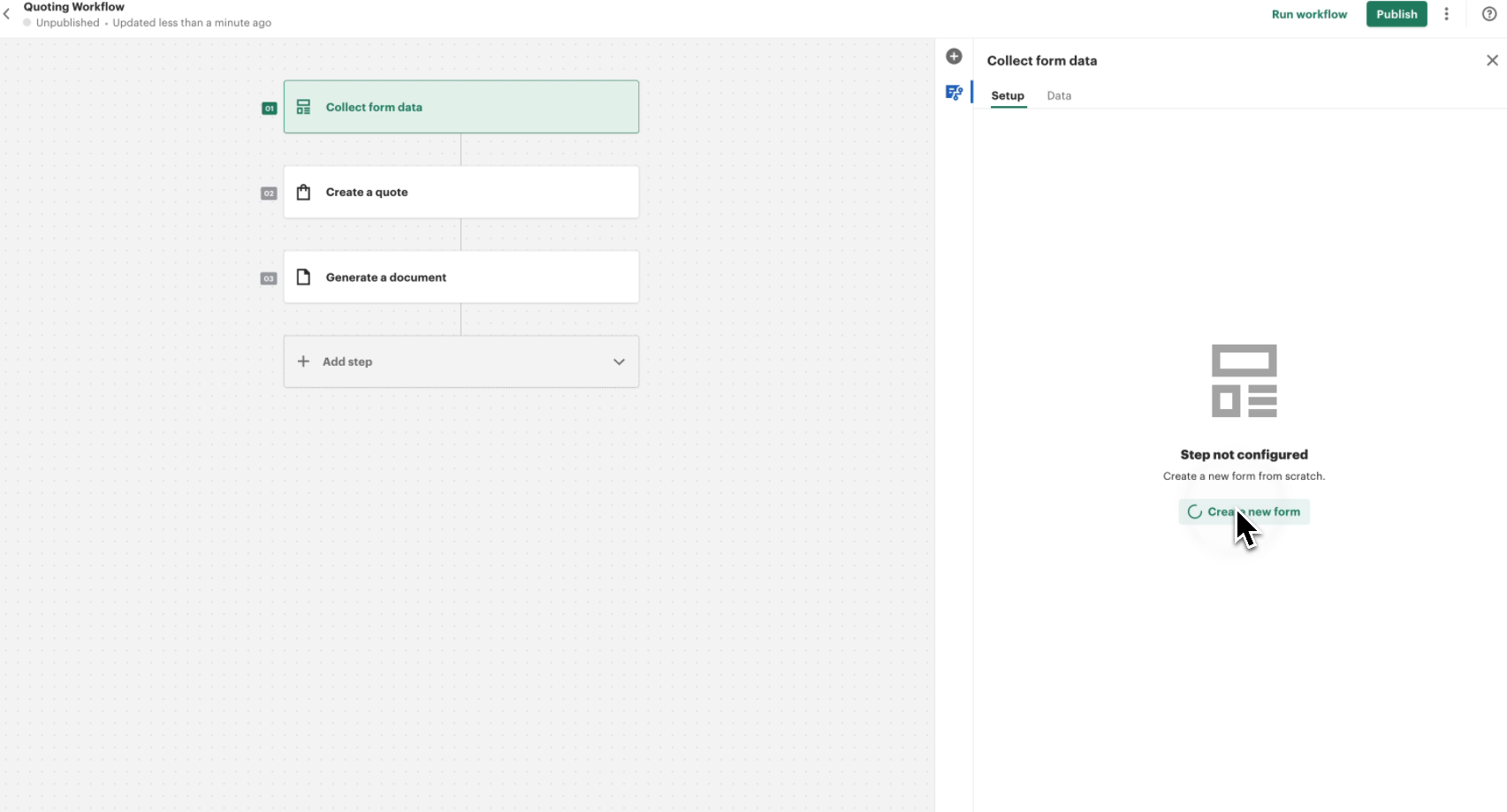
To begin, navigate to the Collect Form Data step and click on Create New Form.
Step 2: Adding a Product Selection Field
- Remove the default question that appears in the form.
- Click Add Field and select Product Selection.
- This field allows sales representatives to select one or multiple security system packages to include in the quote.
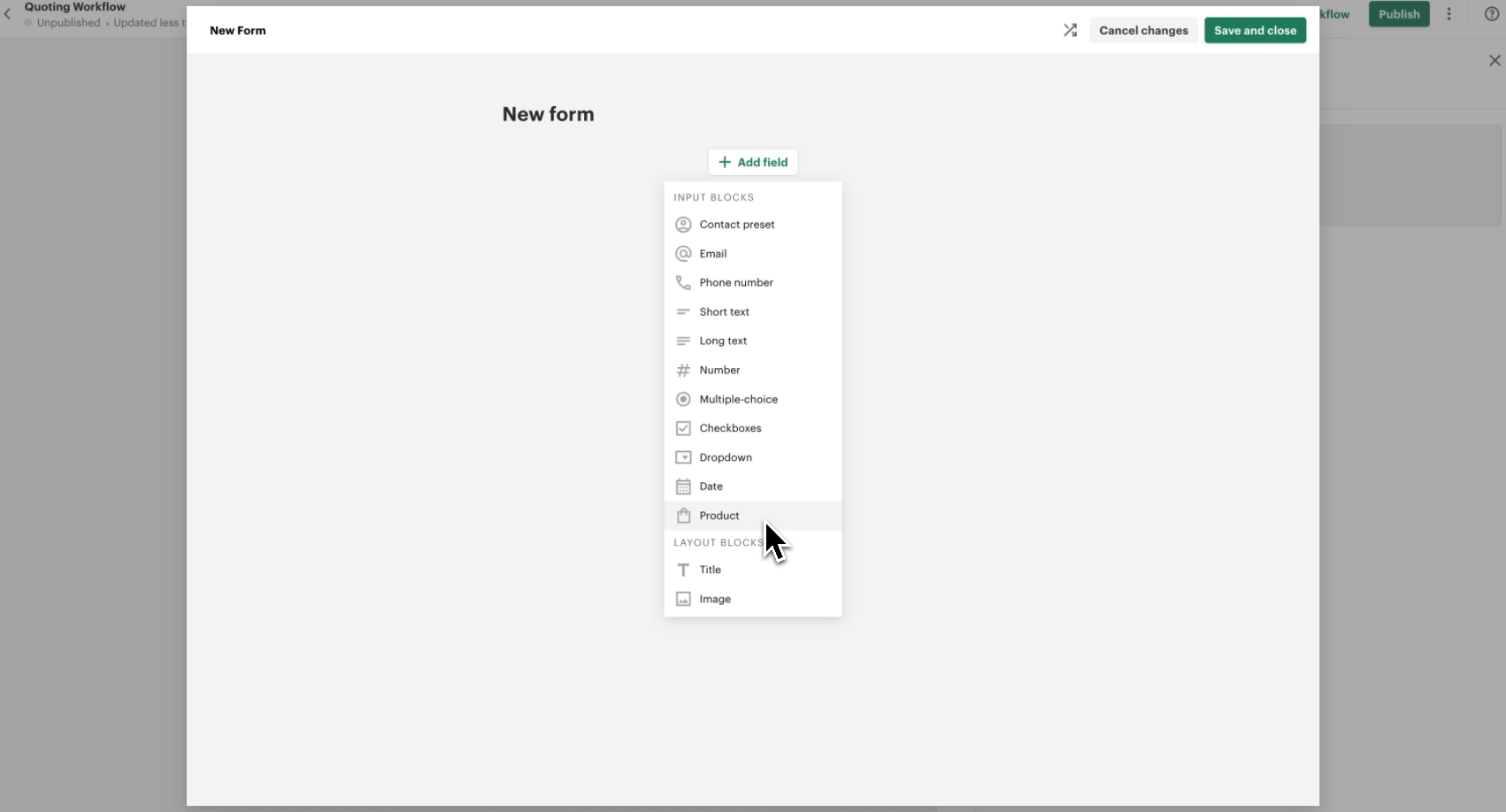
- Click on the + Product button to add products.
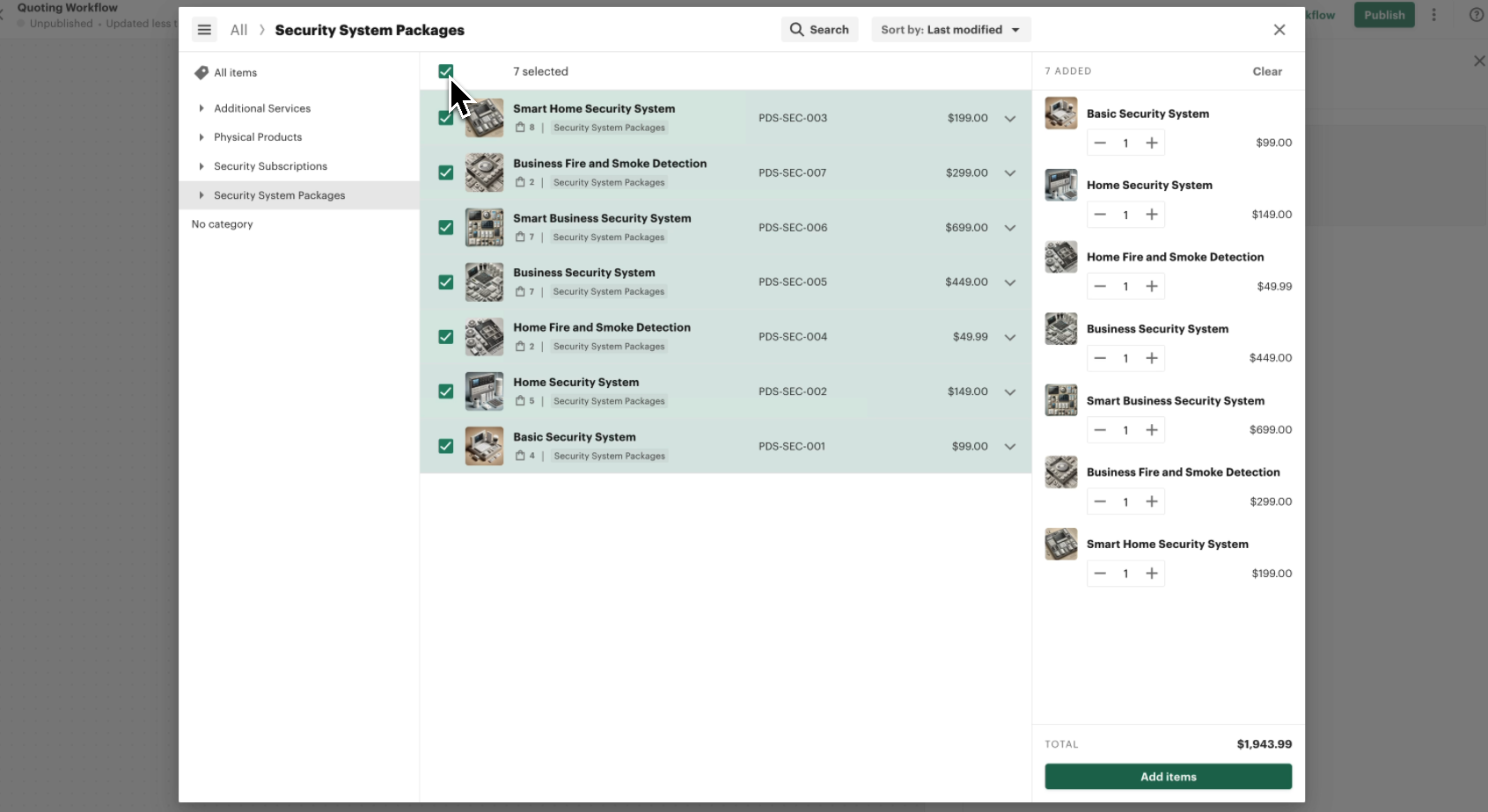
- Navigate to the Security System Packages category and add all relevant product packages.
Step 3: Adding a Discount Selection Field
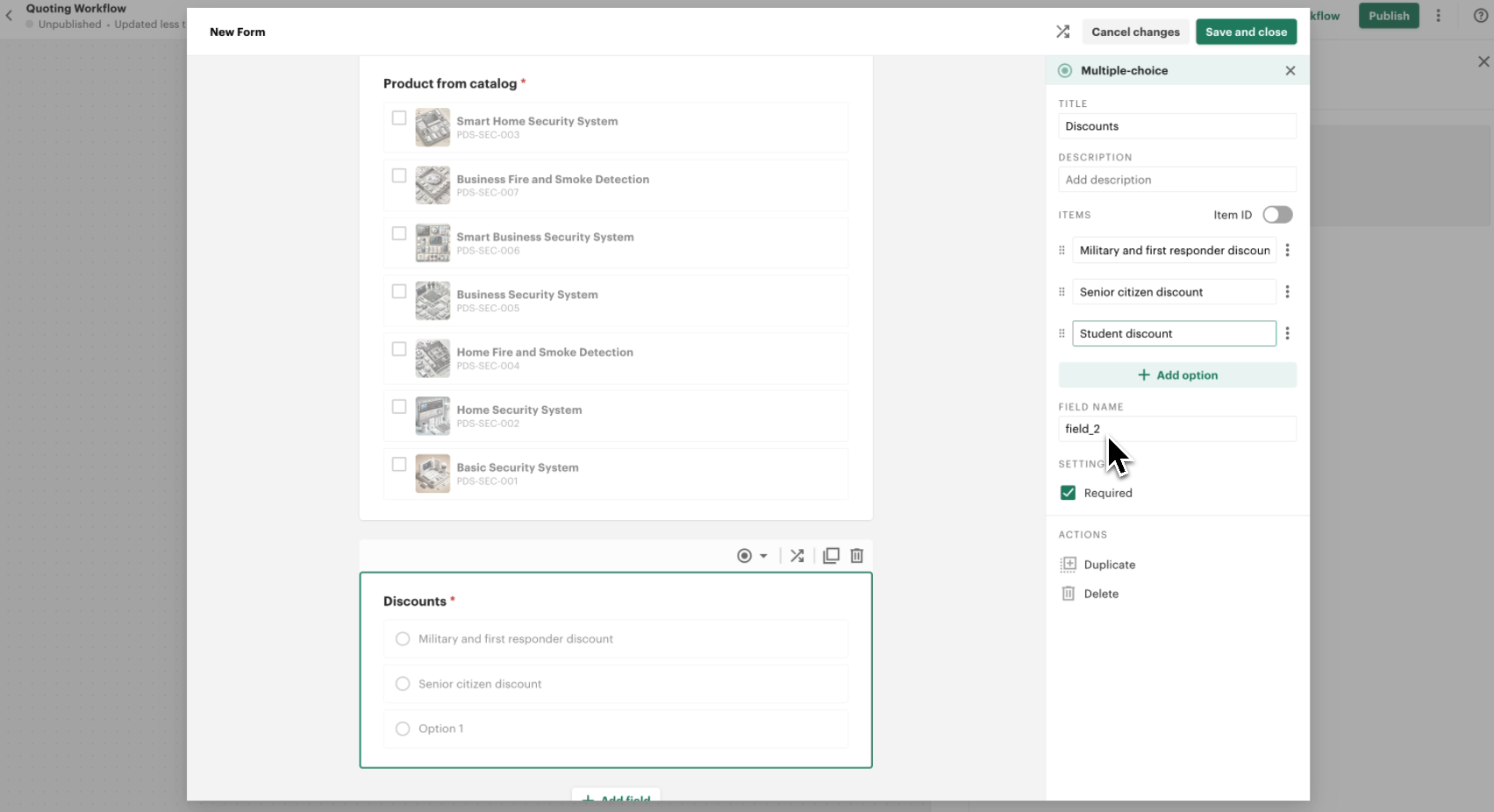
Next, we’ll add a field to capture applicable discounts.
- Click Add Field and select Radio Group (single-choice selection).
- Rename the field to Discount Type.
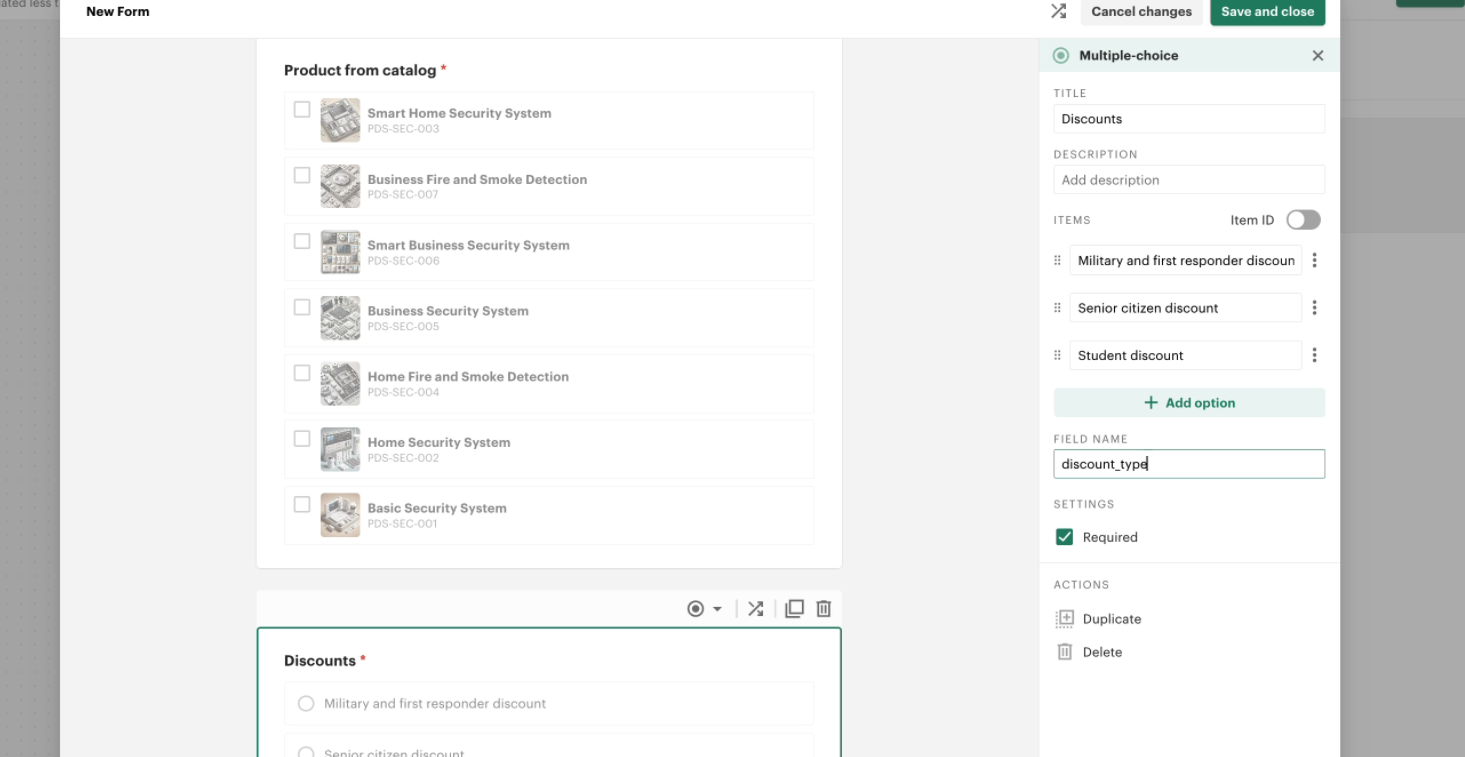
- Add the following discount options:
- Military & First Responder Discount
- Senior Citizen Discount
- Student Discount
Step 4: Renaming and Saving the Form
To finalize the setup:
- Rename the form to Sales Quote Form.
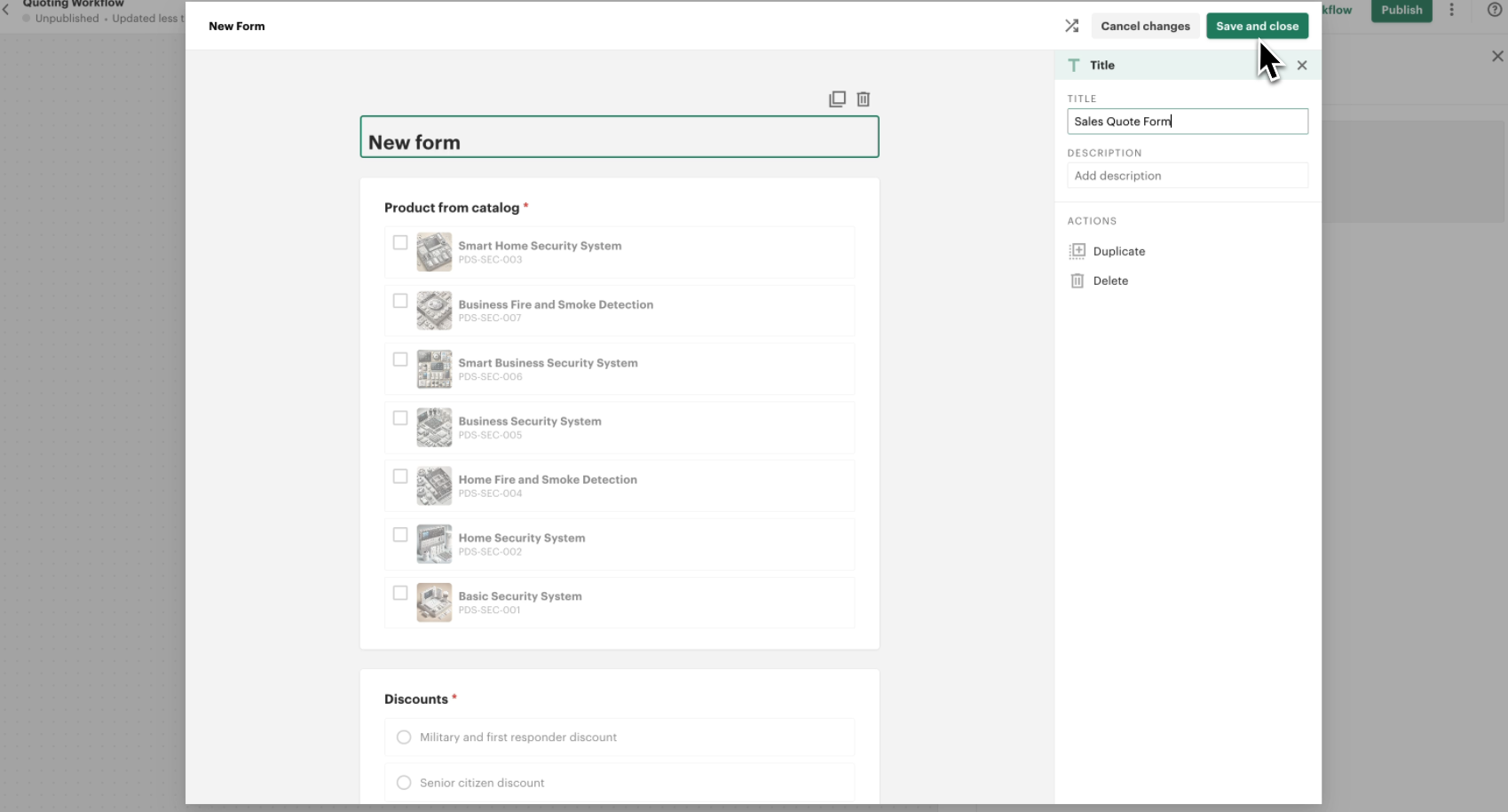
- Click Save to store your guided selling form.
Your Sales Quote Form is now ready for use in the quoting process!